
Install demo · Codex
Follow along: install REA, then read why the dinosaur speeds up
This is a full install track on rea.run. The package pin is [email protected]. You ask questions and play the result. Codex explains the rule and writes the file. REA reads the script that is actually running. Chrome hosts the original game.
The target is the public page wayou’s t-rex-runner, a browser port of Chromium’s offline dinosaur (Chromium Authors, BSD). Analyze that page, or software you are authorized to inspect. Compliance
Four roles
You
Create the practice folder, paste commands, open the result, try the buttons and the slider.
Codex
Read the script REA returns, explain the rule, and write a one-file game.
REA 6.4.0
Connects over MCP to the local debugging port, lists the page, and reads index.js. It does not approve setup for you.
Chrome
Runs the original game from a separate profile on port 9222. A normal window has no analysis endpoint.
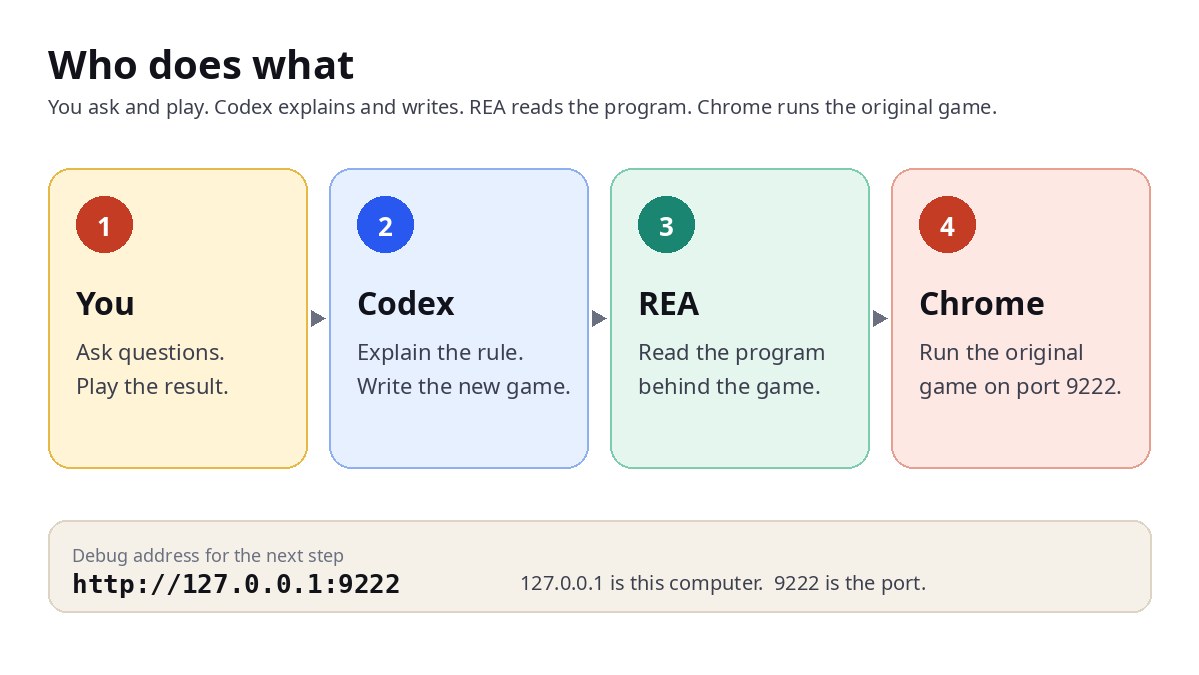
You finish with dino-demo.html in the practice folder: the dinosaur jumps, cacti arrive, the slider changes speed, and auto-accelerate climbs from 6.
1. Play a round so you know the target
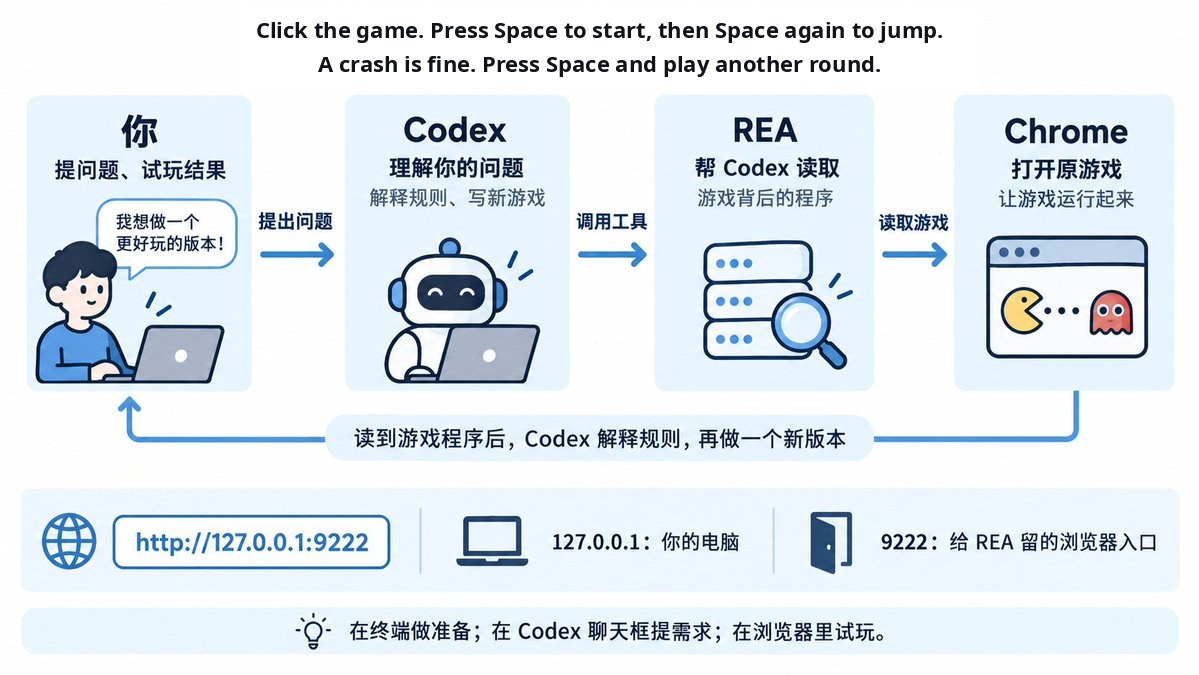
In everyday Chrome, open the original game. Click the playfield, press Space to start, and press Space again to jump the cactus. A crash is fine — start another round. Notice the pace: the longer you last, the faster it feels. That is the question for Codex.
Then open the upstream dinosaur speed lab and try the end state:
- Press Play, then jump the cactus.
- Drag the speed slider and watch the cactus slow down or speed up. Dragging selects a fixed speed.
- Turn on the recovered acceleration rule and the speed climbs again from 6. Dragging the slider returns you to a fixed speed.
- Press Restart.
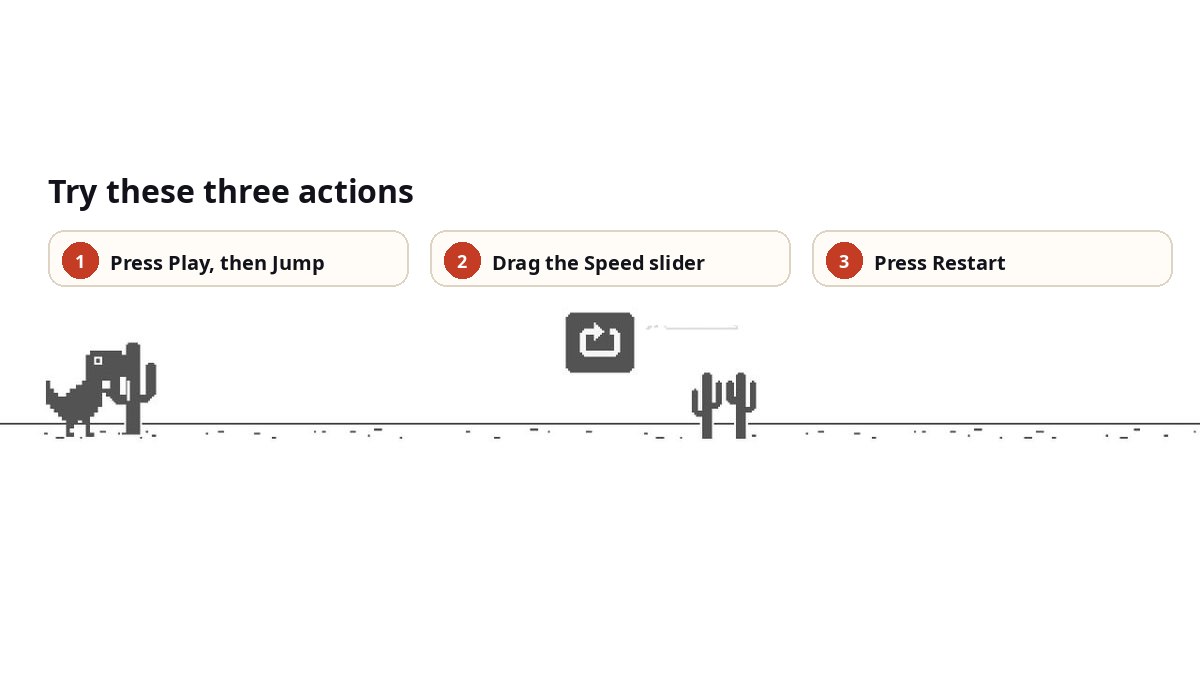
Done when: you have played the original game and the official lab with a slider. The original is for the rule. The lab is the feel to compare against.
2. Check Node
The next sections are four actions: the practice folder, a Node check, REA connected to Codex, then a debug Chrome window.
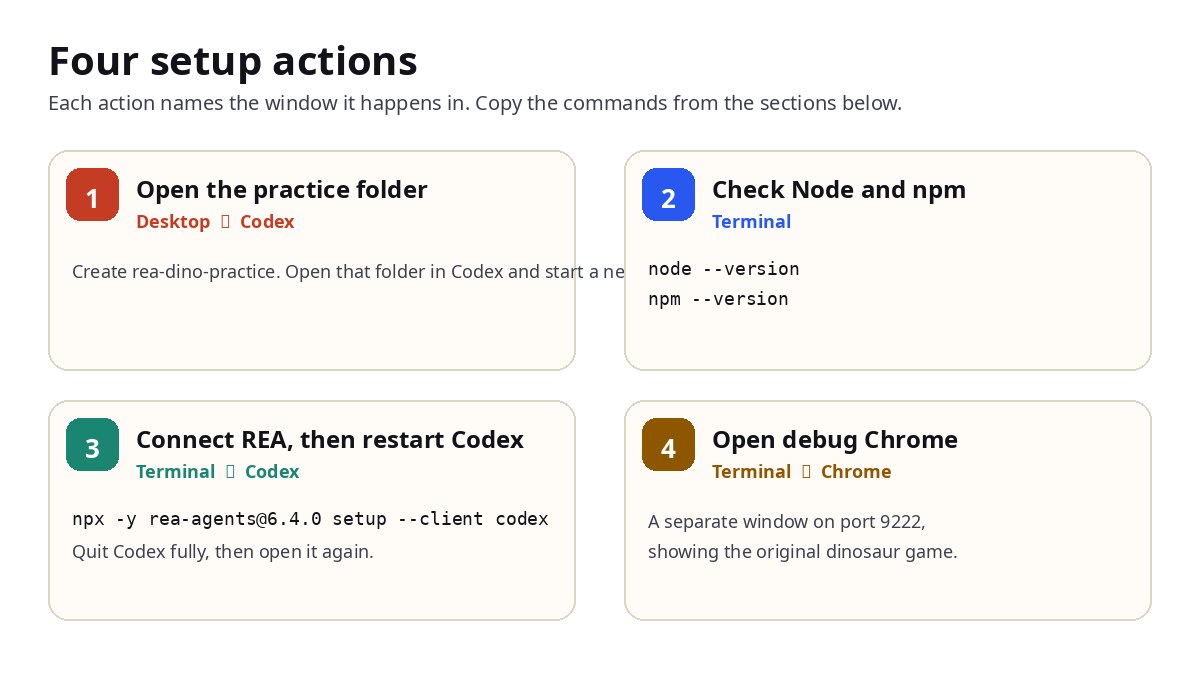
Open a local folder in Codex. The chat and dino-demo.html stay there. A desktop folder named rea-dino-practice is enough.
The engines field on [email protected] is ^22.19.0 || ^24.11.0 || >=26.0.0. This track recommends 24.x at 24.11 or newer. Node 22.19+ and 26+ also pass. Anything older stops setup before a plan exists.
node --version
npm --versionSuccess: two version lines. For example v24.11.0 or a newer 24, plus a working npm. Failure: command not found, or a version outside those three lines. Install the current Node 24 LTS from the Node.js download page, open a new terminal, and check again.
Outside that range, --dry-run --json returns "status":"needs_human" with an empty plannedActions array and a remediation that names the three Node lines. Switch Node before you run --yes.
3. Connect REA to Codex
Read the plan first. This downloads 6.4.0, prints JSON, and does not write Codex config.
npx -y [email protected] setup --client codex --dry-run --jsonOn a supported Node, the status is "status":"planned". appliedActions stays empty. plannedActions should include a Codex client registration and the matching skill. MCP is how Codex calls REA. The skill is the matching workflow note.
If the JSON is opaque, paste it to Codex with:
Explain this REA setup JSON in plain language. Confirm it will register REA's MCP server for Codex and install the matching skill. Point out failures. Missing Ghidra, Hopper, or IDA is fine — this session is only the public dinosaur page. Do not run any command that writes config unless I approve it separately.This exercise is a web script. Ghidra, Hopper, and IDA are not required. A plan that only says those engines are unconfigured is fine. Do not pass --install-hopper.
When the plan is acceptable, apply it:
npx -y [email protected] setup --client codex --yes --json Continue: "status":"ready". Or needs_human whose remediation only says Hopper is optional for non-Hopper work — Codex registration and the skill are already written. Do not install Hopper for that message.
Stop: a non-zero exit, or a remediation about Node, directory permissions, a skill that could not be written, or a Codex config failure. Paste the JSON to Codex, fix it, and rerun.
Quit Codex completely and open it again (Command + Q on macOS; do not only close the chat). Return to rea-dino-practice and the same chat so the new MCP registration loads.
Registration shape is upstream: docs/installation.md. Client matrix: MCP clients.
4. Open the dinosaur page on a debugging port
Back in the terminal, start Chrome with a separate profile and listen only on local port 9222. The page URL tells Codex which page to read. http://127.0.0.1:9222 tells REA which browser to attach to.
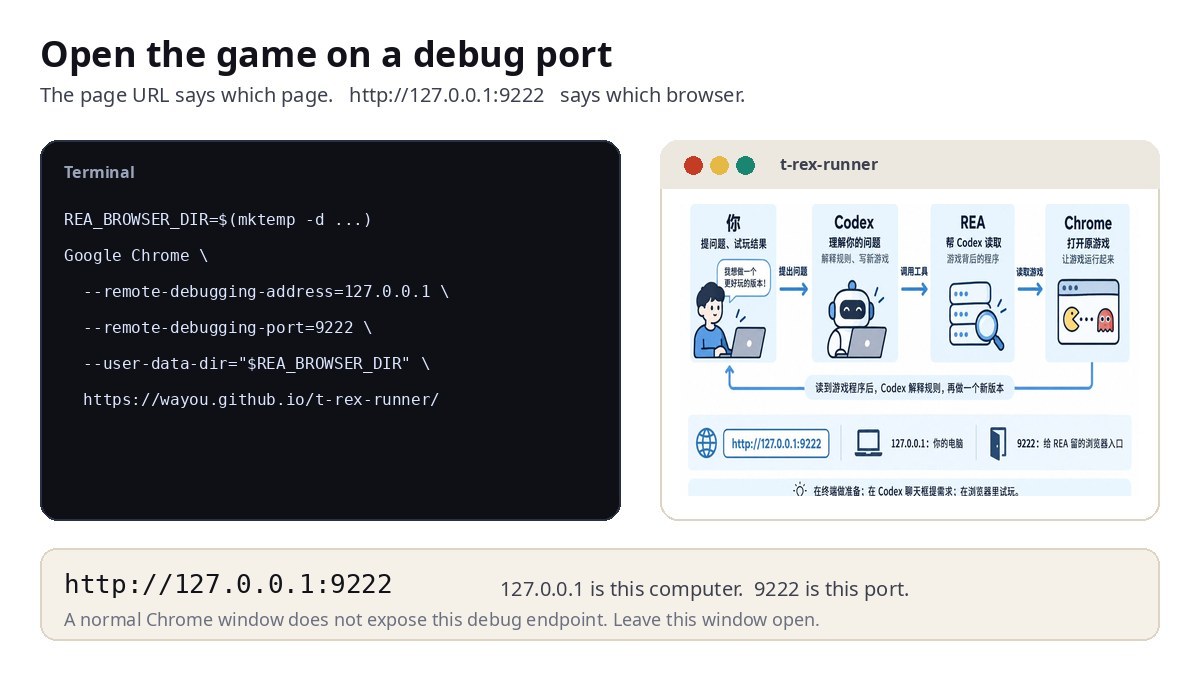
macOS
REA_BROWSER_DIR=$(mktemp -d /tmp/rea-dino-browser.XXXXXX)
"/Applications/Google Chrome.app/Contents/MacOS/Google Chrome" \
  --remote-debugging-address=127.0.0.1 \
  --remote-debugging-port=9222 \
  --user-data-dir="$REA_BROWSER_DIR" \
  --no-first-run --no-default-browser-check \
"https://wayou.github.io/t-rex-runner/"Linux
If google-chrome is not on PATH, use google-chrome-stable or your Chromium binary. The upstream browser guide uses the same debugging flags.
REA_BROWSER_DIR=$(mktemp -d /tmp/rea-dino-browser.XXXXXX)
google-chrome \
  --remote-debugging-address=127.0.0.1 \
  --remote-debugging-port=9222 \
  --user-data-dir="$REA_BROWSER_DIR" \
  --no-first-run --no-default-browser-check \
"https://wayou.github.io/t-rex-runner/"Windows (PowerShell)
If Chrome is not under Program Files, point the command at the real chrome.exe.
$dir = Join-Path $env:TEMP ("rea-dino-" + [guid]::NewGuid().ToString("N").Substring(0,8))
New-Item -ItemType Directory -Force -Path $dir | Out-Null
& "$env:ProgramFiles\Google\Chrome\Application\chrome.exe" `
  --remote-debugging-address=127.0.0.1 `
  --remote-debugging-port=9222 `
  --user-data-dir="$dir" `
  --no-first-run --no-default-browser-check `
"https://wayou.github.io/t-rex-runner/"Success: a new Chrome window opens on the dinosaur game. Leave that window and the terminal that launched it. A normal Chrome window does not expose port 9222. Connection notes: the upstream browser guide and browser-observation.md.
5. Ask Codex why it gets faster
Return to the same Codex chat and send this whole block. The tool names are for Codex to call over MCP.
Use REA to inspect this dinosaur page: https://wayou.github.io/t-rex-runner/. Chrome is already open for analysis. The debugging endpoint is http://127.0.0.1:9222. Call list_browser_targets to find the page, then inspect_web_page with include_script_sources, and read the loaded index.js. In plain language, state the starting speed, how speed increases, and when it stops increasing. Cite the program location for each claim. Separate what you read in code from what you checked by running it. This turn is rules only. Do not build a new game yet.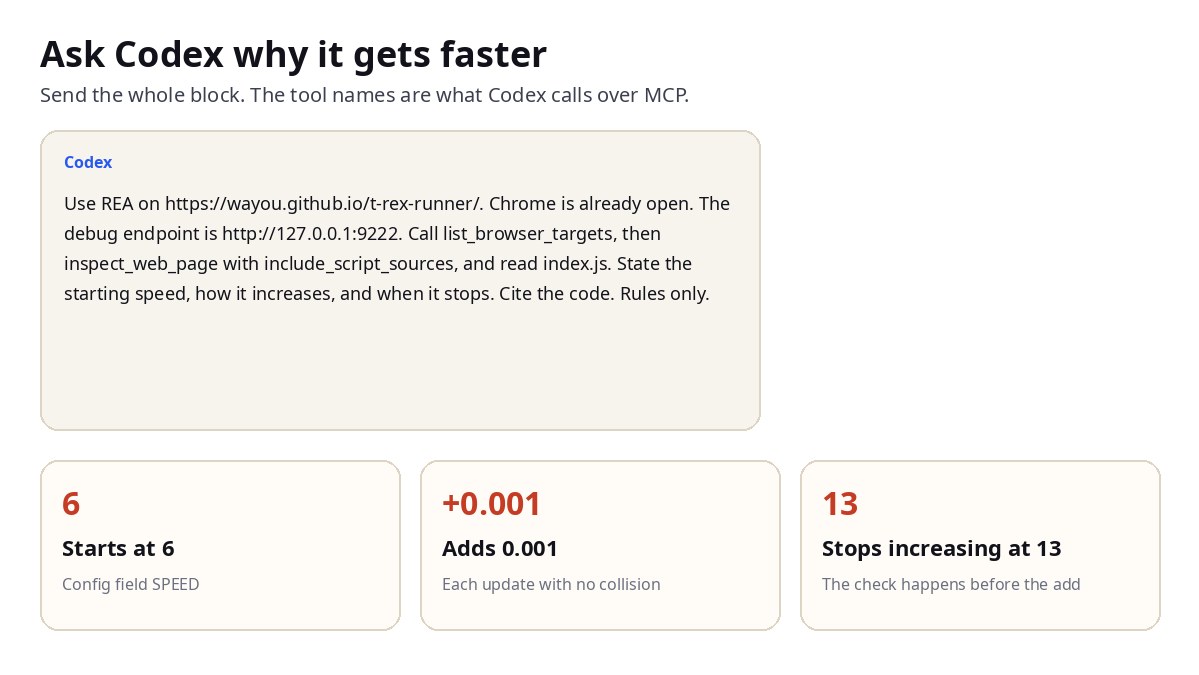
The chat should show REA tool calls. The answer should cite a location in index.js. This turn needs three facts, each with a source:
- Speed starts at 6 (
SPEED). - On an update without a collision, if current speed is below
MAX_SPEED, the game addsACCELERATION, which is 0.001. - The cap check is 13. The check happens before the add, so the last increment can land slightly above 13.
An “update” here is one logic tick, not one wall-clock second. The upstream lab quotes the same branch:
if (this.currentSpeed < this.config.MAX_SPEED) {
  this.currentSpeed += this.config.ACCELERATION;
}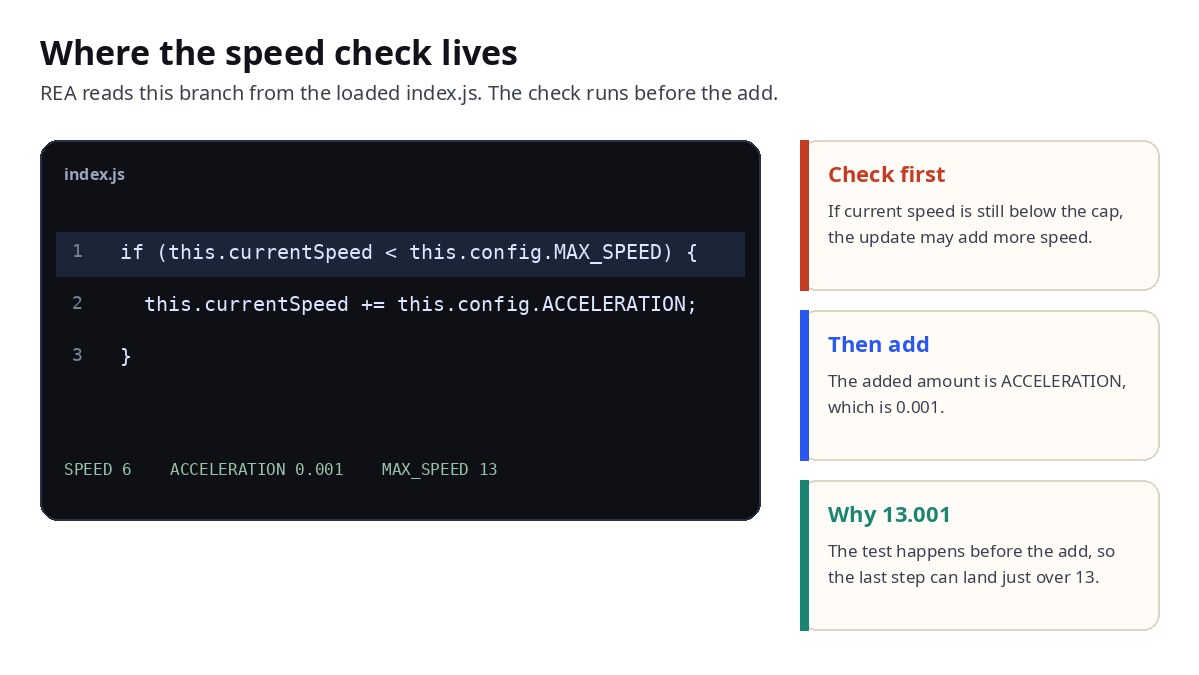
The settings are SPEED: 6, ACCELERATION: 0.001, and MAX_SPEED: 13. If the reply only says “it gets faster”, send:
Split the answer into three lines: starting speed, how it accelerates, and the stop condition. For each line, cite where in index.js you read it.Continue when: all three facts cite index.js, and code-read claims are separate from anything checked by running. You do not need to audit the file yourself yet.
6. Build a version with a speed slider
Stay in the same chat so Codex still has the rule it just read.
Using the acceleration rule REA just recovered, create dino-demo.html in this practice folder: a dinosaur game that opens directly in a browser. Keep everything in one file. Do not install packages or download assets. The dinosaur can jump, and cacti come in from the right. Add buttons labeled Start, Jump, and Restart. Space also jumps. A collision shows game over. Add a speed slider from 2 to 18 and show the current speed beside it. Dragging the slider selects a fixed speed. Also add an Auto-accelerate option that starts again at 6 when turned on. Auto-accelerate keeps the original check on each update without a collision: if speed < 13, add 0.001. The new game runs 60 logic updates per second. You implement drawing, jumping, and collision, and you label which parts follow the original rule and which parts are new. Then check that the page runs, tell me the absolute path, and give the exact steps to open it in Chrome. Do not ask me to edit the code.When it finishes, open dino-demo.html from the practice folder in Chrome. If the file is missing, or the tab shows source text, ask Codex for the absolute path and the open steps.
Once the page plays, try this order:
- Press Start. The cactus should move.
- Press Space. The dinosaur should jump. If the page scrolls instead, send that symptom back to Codex.
- Drag speed from 3 to 12. The cactus should get obviously faster, and the speed should stay fixed.
- After a collision, press Restart and play again.
- Turn on Auto-accelerate. The speed number should climb from 6.
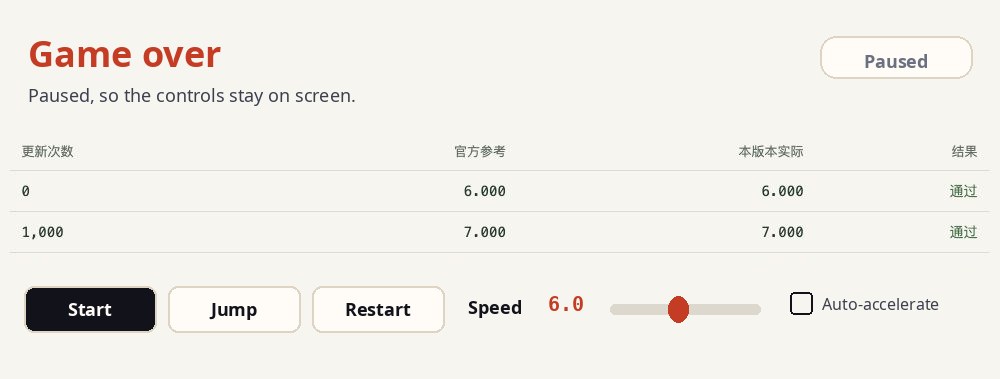
The picture does not have to match the official lab. Buttons, jump, slider, restart, and auto-accelerate are this step. Auto-accelerate should be equivalent to:
function advanceSpeed(speed) {
  return speed < 13 ? speed + 0.001 : speed;
}
The slider supplies a fixed speed. Drawing, jumping, and rectangle collision are new code. The simulation advances at 60 logic updates per second.
7. After it plays, check the arithmetic
Playing proves the controls. This step proves the acceleration function matches the original rule at four checkpoints. You do not have to survive 10,000 updates by hand.
Check the acceleration function that the generated dino-demo.html actually runs. Start at speed 6, with collisions excluded, and report the speed after 0, 1000, 4000, and 10000 updates. Keep three decimal places and compare each value with 6.000, 7.000, 10.000, and 13.001. Reply with a table, say what you executed, and if any row differs, fix it and run the check again.| Updates | Reference | What it means |
|---|---|---|
| 0 | 6.000 | Start, before any add |
| 1,000 | 7.000 | +0.001 each update |
| 4,000 | 10.000 | Still under 13 |
| 10,000 | 13.001 | Check-before-add, then float, lands just over 13 |
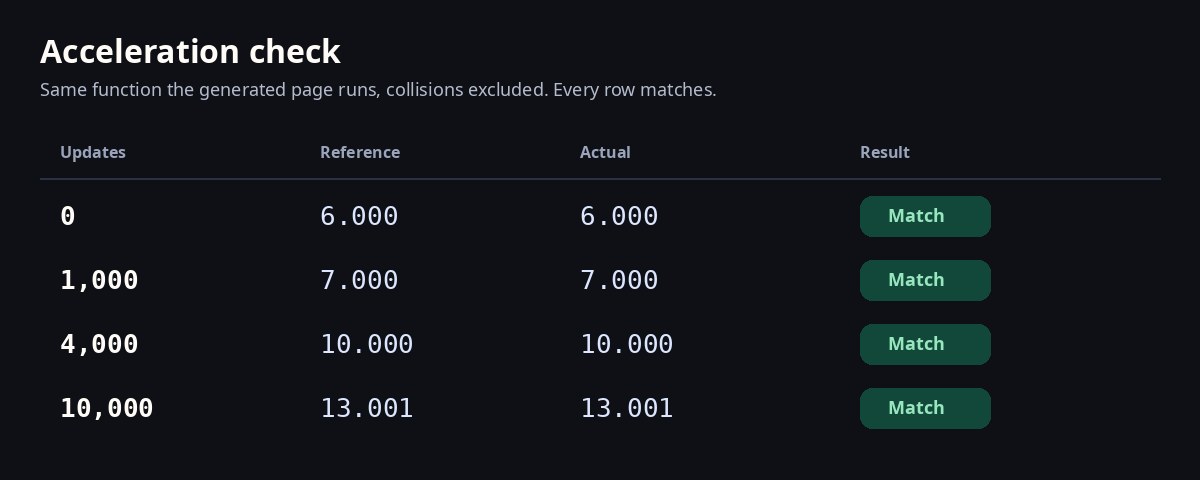
Four matches mean those checkpoints agree. Collision and restart still depend on the play pass in step 6. When both pass, this track is done. Close the debugging Chrome window and keep the practice folder.
Replay on this page
The browser applies speed < 13 ? speed + 0.001 : speed starting at 6. It does not call REA, and it does not replace Codex checking your HTML.
If you get stuck
Paste the action and the raw output to Codex:
I am following the rea.run Codex dinosaur install demo, pinned to [email protected]. In [terminal / Codex / Chrome] I just did [action], and got this output: [paste]. Explain the cause, then tell me the next action, which window to use, and what I should see when it works. This session only analyzes the public dinosaur page.- command not found: Node or npm is missing. Install 24.11+ and open a new terminal.
- setup returns needs_human and mentions Node: the version is outside
^22.19.0 || ^24.11.0 || >=26.0.0. Switch, then dry-run again. - No new Chrome window: paste the terminal output to Codex and say whether Chrome is installed and whether the binary path is right.
- Connection refused, or the game target is missing: the debugging Chrome must still be open on t-rex-runner at
http://127.0.0.1:9222. - Port 9222 is in use: pick another local port, change both the launch command and the address you send Codex, then start that Chrome again.
- Codex says it has no REA tools: confirm
--yeswrote the config, and that Codex was fully quit and reopened. - The new game opens but a control does nothing: say which control, what you did, and what appeared. Let Codex edit the file, then open it again.
After the dinosaur
The same browser connection continues into the upstream Notes export: click Export notes, then ask what data the click fetched and how the download was built. Steps are in the browser guide. The page is notes-web.
Other authorized cases live on the showcase. Install flags and engine limits stay on the install guide and the 6.4.0 ops note.